Hello Readers My name is
Shanzay khan & Today i am going to show you
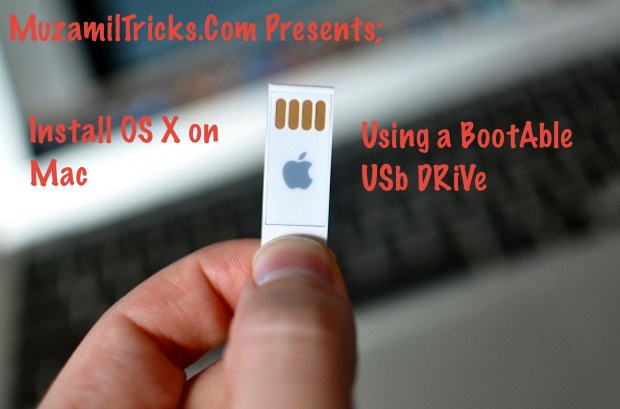
How to Reinstall Mac OS X On Macbook Using BootAble Usb Disk
 |
| How to Reinstall Mac OS X On Macbook Using A BootAble Usb Disk |
Lets Start ;
- Thing You Will Need To install Os X on Mac
- InterNet Connection For Recovery Software To Download The Installation Components
- Os X Dvd or If You have Downloaded It you Can Google it For Downloading OS X ISO
- Then 8 GigaByte of Usb Drive
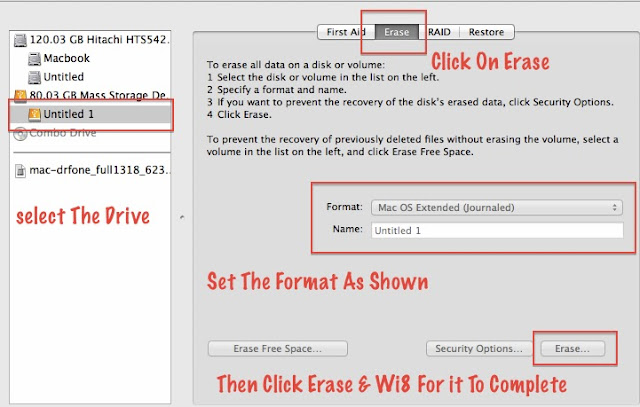
- First Of All Insert Your Usb Drive in to Mac & Open Disk Utility & Click on Your Usb Drive
- Then Click on The Erase Option & Select FORMAT: Mac os Extended (Journaled) & Click Erase & Wait For it To Complete
Follow the Screenshots
 |
| How to Reinstall Mac OS X On Macbook Using A BootAble Usb Disk |
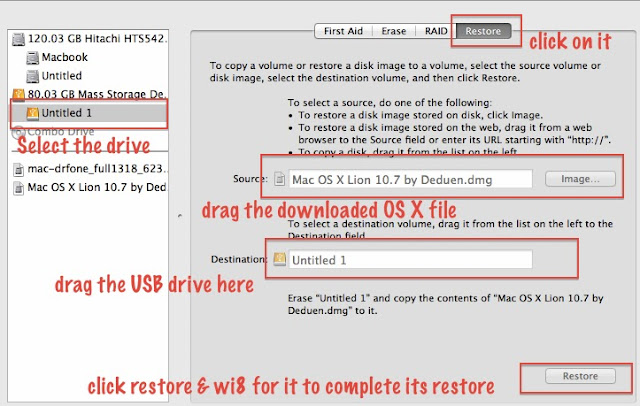
- After The Erase Complete Click On The Restore Button & In The Source Drag the Downloaded Iso or Dmg File of OS X & in The Destination Drag the USB Drive & Click Restore It will Ask You To ERASE ALL THE DATA IN THE USB & RESTORE OS X FILE IN IT CLICK ERASE & RESTORE.
Follow the Screenshots;
 |
| How to Reinstall Mac OS X On Macbook Using A BootAble Usb Disk |
- Now The Restore is Complete You Will Have To Reboot Your Mac Into Recovery
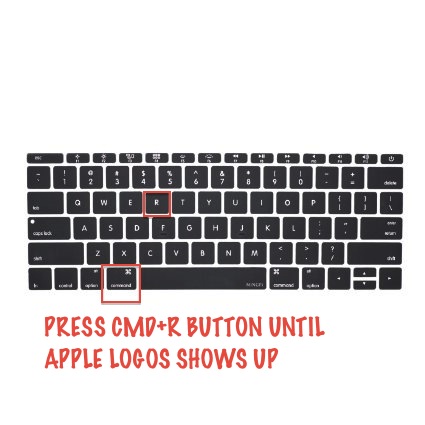
- For Recovery You Will Have To Turn Off YOur MAc & Turn It On With Pressing The CMD+R Buttons On Your Mac
- DONOT LEAVE THE CMD+R BUTTONS UNTIL THE APPLE LOGOS SHOWS UP
Follow The ScreenShots;
 |
| How to Reinstall Mac OS X On Macbook Using A BootAble Usb Disk |
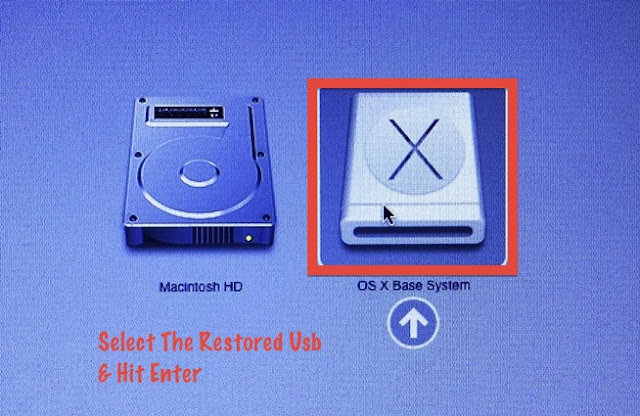
- After that you will see the recovery screen with Your Connected Drives You Will Have To Choose the Restored Usb Drive
Follow The ScreenShots;
 |
| How to Reinstall Mac OS X On Macbook Using A BootAble Usb Disk |
- Select the Target Disk You Want To Install OS X In Mostly Cases If you didn't changed it It Will Be Written as MACINTOSH HD select it & Hit Enter
- The Recovery Software Will Download Some Additional Components From Apple Server Required To install OS X on Mac Once This Process Completes your Mac Will Restart Automatically
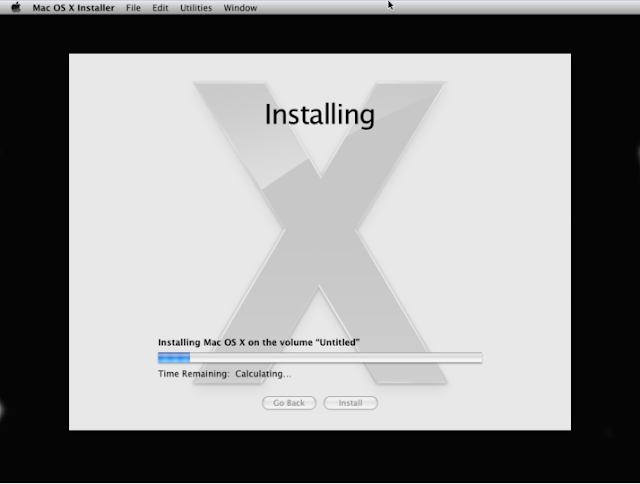
- Now After Restart You Will See The Black Screen With Apple Logo And The BAr Indicating That How Much Time Is Left In Installation
 |
| How to Reinstall Mac OS X On Macbook Using A BootAble Usb Disk |
- Now The Installation is Complete Mac Will Reboot Itself & Here You Go Installation is Complete
- Now You Have to set up a new Mac By Creating A New User & By Entering Some Information About You
- Done Enjoy A Fresh New Copy Of MAC OS X on Your Mac
- For More Help Comments Below
Enjoy Your Self & Keep Visiting
MUZAMILTRICKS.COM