Friday, 29 January 2016

How To Accept All Friend Request On Facebook By Single Click

Accept All Friend Request On Facebook By Single Click


Hello Readers my name is Muzamil Hussain.Today i,m going to share with you an amazing method from which you can easily accept all friend request of your facebook account by simple java script code.this trick is very helpful for that users which are regular user of facebook and immediately can receive a lot of friend request on facebook .this is very simple facebook trick. For this trick  just follow these simple steps
1) First of all log in to your facebook account
2) Now click on friend request icon as shown in figure

How To Accept All Friend Request On Facebook By Single Click

3) Now Press F12 a new window will open and click on console then copy the following code and paste this code in chrome console window and press enter.

javascript: var field = document.getElementsByName(“actions[accept]”);for (i = 0; i < field.length; i++)field[i].click() ;

4) Wait a Moment …..Now your all pending request will be accepted automatically as shown in figure.

How To Accept All Friend Request On Facebook By Single Click

Note:
Enjoy with this facebook trick and keep visiting this site and tell your friends for visiting
Thank you

If you Like this Article So Share your,s Friends and tell About our site,If you have any problem so contact us Feel Free Thanks.

www.MuzamilTricks.com

Thursday, 28 January 2016

How To Set Up Bluetooth To Your iPhone Through Your Car

Set Up Bluetooth To Your iPhone Through Your Car

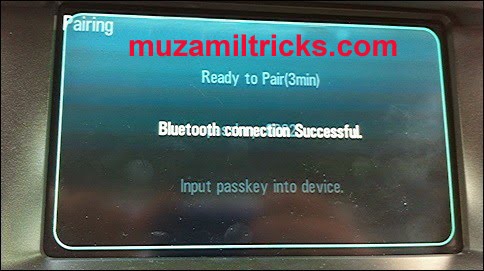
Hello Readers my name is Muzamil Hussain.Today i,m Going to Tell You How To Set Up Bluetooth To Your iPhone Through Your Car. According to state law, as of Gregorian calendar month 2008, you want to have a hands free device or Bluetooth for talking on your telephone whereas driving a automotive. as luck would have it technology has well-kept with the days for vehicles that enable you to own a Bluetooth return through your automotive radio. This tip can assist you perceive however easy and simple it's to line up a Bluetooth to your iPhone through your automotive. First, you want to be within your automotive for the association between your iPhone’s Bluetooth and also the automotive to occur. you'll definitely activate Bluetooth mode on your iPhone whereas sitting in your lounge, however it’s not progressing to connect unless you're really within the automotive. there's solely a particular vary that Bluetooth will connect with associate degree iPhone with and it wouldn't be for you to own iPhone connected to Bluetooth if you're sitting within the tub.
How To Set Up Bluetooth To Your iPhone Through Your Car

So once you're within your automotive, begin by sound your settings app on your iPhone. Since you wish to line up a Bluetooth to your iPhone through your automotive, you're progressing to would like the automotive turned on and also the radio turned on. Once within your settings app, click the tab that says General. you'll then see another tab that says Bluetooth. Since this can be your initial time doing this, and you're within the tip on a way to started a Bluetooth to your iPhone through your automotive, the Bluetooth choice can mechanically
be on off. Click the Bluetooth tab, and initial switch it to on mode. you'll See an alternative choice to feature a tool. Device during this instance is touching on the particular automotive or automobile. currently on your automotive radio (if you would like to see your owner’s manual since all cars steps vary) please do therefore at now therefore you recognize what button on the radio to push. Since there square measure several makes and models of cars out there today, every automotive can have their own specific button on the automotive radio to push.
The button choices square measure usually: choose (meaning to pick out the phone device it's studying (through airwaves and sound waves), try (because you'll link over one phone to your automotive -for example if you share the automotive together with your husband and you've got your iPhone joined to the automotive for Bluetooth, therefore will he link his iPhone to the car’s Bluetooth). Since you're putting in the Bluetooth to your iPhone for the primary time through your automotive, {you can|you'll|you may} click choose and also the show on the automotive radio will provide a phone that it picks up. after you see your name id est. Sally’s iPhone or iPhone, opt for the one that applies to you. it'll begin looking for the particular association. you're basically doing the automotive radio setting and also the iPhone setting at identical time. therefore currently if you look on your iPhone, you'll see the Devices box, looking out and it'll say ‘now discoverable’. somewhat sand glass circle can go around till it connects and each the iPhone and also the automotive can say connected.
If you click the insufficient blue triangle on the device tab, you'll see one more tiny menu that asks you if you wish to synchronize contacts, phone favourites, and phone recent. confirm they're all switched to ON because the automotive can connect with your iPhone however if you've got these off it'll not be ready to transfer your contacts. As long as you've got these switched to on, once the association is complete, the automotive can say downloading contacts -which is wherever it's studying the contact list on your iPhone. this can be however you'll be ready to verbally speak aloud into the automotive to dial a particular person or phone number whereas driving hands free.
To turn off the Bluetooth (especially since it wastes a ton of battery when you’re not driving in the car) simply go back to settings, general tab, Bluetooth tab and click the off button. It will automatically stop searching for a connection. Good Luck & Enjoy :)
If you Like this Article So Share your,s Friends and tell About our site,If you have any problem so contact us Feel Free Thanks.

www.MuzamilTricks.com

How To Fix Windows XP Corrupted Files Without Software

Fix Windows XP Corrupted Files 

Hello Readers my name is Muzamil Hussain.Today i,m going to share with you a method with this you can easily fix your windows xp corrupted files. This trick is also work on Windows 7 And Windows Vista Just follow these simple steps after these you can easily fix your windows corrupted files.

How To Fix Windows XP Corrupted Files Without Software


1) First of all take a Windows XP CD/DVD
2) Place Windows XP CD/DVD In your CD/DVD Drive
3) Now Go to start menu and then click on Run option
4) Type Here sfc/scannow

Now Your XP Will run fine and You Have Done.

If you Like this Article So Share your,s Friends and tell About our site,If you have any problem so contact us Feel Free Thanks.


www.MuzamilTricks.com

How To Prevent System From Auto ShutDown By Virus

Prevent System From Auto ShutDown By Virus


Hello Readers my name is Muzamil Hussain.Today I’m Going To Share With You An Amazing Trick By Using This Trick You Can Prevent Your System From Auto Shutdown By Virus.Some Computer Which Are Fully Loaded With Viruses Files And Automatically Restart This Trick Is Very Useful For That Computers Which Automatically Restart. To Prevent Your System From Auto Shutdown Just Follow These Simple Steps.


Prevent Your Computer From Automatically Restart

1) First Of All Start Your Computer And Then Click On Start Menu
2) Now Here Click Run Option
3) Type Shutdown/a And Press Enter
Now You Have Done. Now Your Computer Not Force To Shutdown By Virus
if you have any issue or question about this topic you can ask me and feel free to comment below i will try to give answer of your question.

If you Like this Article So Share your,s Friends and tell About our site,If you have any problem so contact us Feel Free Thanks.

www.MuzamilTricks.com

How To Hide Your Facebook Account For Non Friends

Hello Readers my name is Muzamil Hussain.Today I,m getting to Share You a tremendous Facebook Trick with this trick you'll be able to hide your Facebook account for United Nations notable individuals.This is as a result of each one desires an additional layer of privacy for his or her account.this is not a troublesome trick simply follow these straightforward steps.

How To Hide Your Facebook Account For Non Friends

Log into your Facebook account along with your username and countersign. take care that you just ar on the “home” page. find the down arrow within the prime right corner that is found next to your name and “home”.
Click on the down arrow and also the choose Privacy Settings. The privacy settings ar harder to navigate and management than they were within the past that is one among the explanations why it's necessary for brand new Facebook users to flick through the settings and build acceptable changes.

Set your default privacy. the primary box you return to can provide you with the choice to line your default privacy level. There ar 3 choices – public, friends or custom. If you decide on public this implies that each one posts you write and footage that ar uploaded are going to be visible to any or all Facebook users, no matter United Nations agency they're. If you decide on friends this can enable your posts and footage to be visible to simply your friends. A pop-up box can seem and permit you to pick all of your friends or teams of your friends furthermore because the choice to block specific friends from seeing your posts. you'll be able to enter their names and a dropdown menu can seem with the choice to pick those persons to be additional to your blocked post list. the ultimate choice is to decide on custom settings which permit you to create your Facebook posts and footage visible to simply yourself, bound teams of friends and to line restrictions for sure users. This setting solely controls the visibility of your posts, pictures and data on your Facebook Account.

Edit your “how you connect” settings. Click “Edit Settings” next to “How You Connect” and a popup box can seem. during this box you'll be able to set specific settings for every of the queries gift. will} enable you to line the privacy settings for United Nations agency can research your Facebook timeline by name, email address or signal, United Nations agency will send you messages and you'll be able to send you friend requests.
Edit your “Timeline and Tagging” settings. during this section you may be ready to modification United Nations agency will post on your profile wall, you'll be able to see posts from others, United Nations agency will see posts you're labelled in, United Nations agency will tag you and if you would like to approve tags from people. If you modify all of those settings to solely you or solely friends, it'll enable you to stay your profile personal from outsiders.

If you Like this Article So Share your,s Friends and tell About our site,If you have any problem so contact us Feel Free Thanks.

www.MuzamilTricks.com

Wednesday, 27 January 2016

How To Get Google Result Through SMS On Mobile

Get Google Result On Mobile By SMS


Hello Readers my name is Muzamil Hussain.Today I’m Going To Share With You The Trick This Trick Is Very Useful For That Users Which Are Using An Old Mobile Phone Which Does Not Support Gprs OR Any Other Internet Connectivity.With This Trick You Can Easily Get Result Of Your Search From Google On Your Mobile Phone This Is A Free Service Provide By Google.


Note:

This Service Is Present For Only In  India And USA

India Users Can Send Their Search Request To Google At  9773300000

USA Users Can Send Their Search Request To Google At 466453

For Example:

India And USA Users Want Result From Google e.g
History Of Internet They Will Send This Keyword In Their Provide Code Which I Already Given In Up.


If you Like this Article So Share your,s Friends and tell About our site,If you have any problem so contact us Feel Free Thanks.

www.MuzamilTricks.com

Google Plus Keyboard Shortcuts For Google Plus Users

Google Plus Keyboard Shortcuts


Hello Readers my name is Muzamil Hussain.Today I’m Going To Share With You All Useful Google Plus Keyboard Shortcuts For All Google Plus Users.


Space Ba                         Scroll down the stream
 Shift + Space                   Scroll up the stream
 J                                    Single post down scroll
 K                                  Single post up scroll
 Q                                 Jump to chat
 Enter                            Start comment
 Tab + Enter                  End comment
 +/@                             Mention someone in the comment or post.
 
 Backspace                    Back to last page


If you Like this Article So Share your,s Friends and tell About our site,If you have any problem so contact us Feel Free Thanks.

www.MuzamilTricks.com